Creating Custom VS Code Extensions
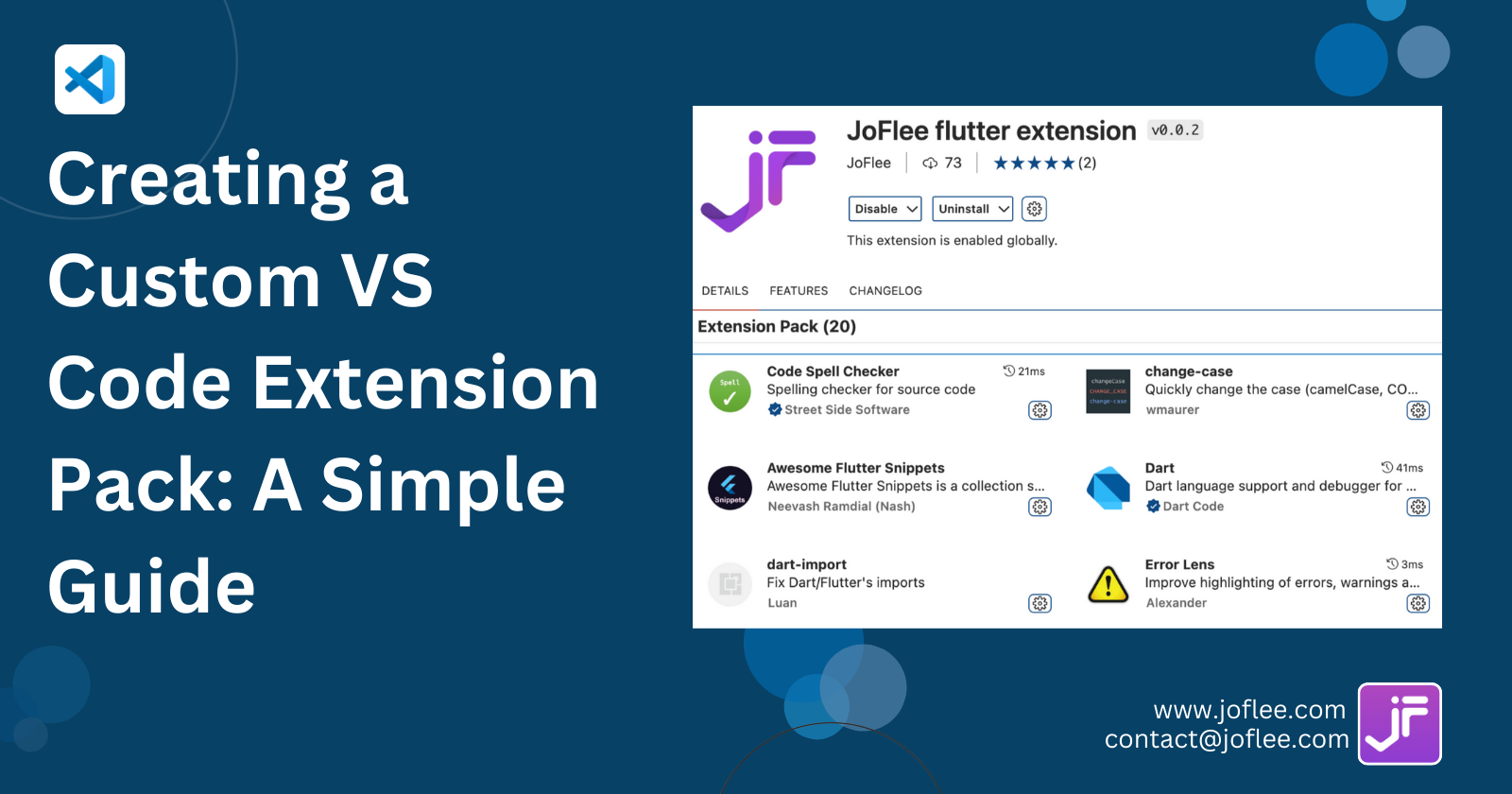
VS Code's power lies in its extensibility.
The Extension API Using TypeScript and Node.js, you can interact with the editor to add new commands, language features, and custom UI panels. Building an extension not only improves your own productivity but allows you to contribute back to the developer community.
Setting Up Your First Extension
Install the Yeoman generator and VS Code Extension generator:
```bash
npm install -g yo generator-code
yo code
Choose a TypeScript project. The scaffold gives you `extension.ts` with `activate` and `deactivate` functions. In `activate`, you register commands using `vscode.commands.registerCommand`. The extension manifest (`package.json`) declares the `activationEvents` (e.g., `onCommand`) and contributes commands, menus, or keybindings.
Adding a Simple Command
```typescript
import * as vscode from 'vscode';
export function activate(context: vscode.ExtensionContext) { const disposable = vscode.commands.registerCommand('myExt.helloWorld', () => { vscode.window.showInformationMessage('Hello from My Extension!'); }); context.subscriptions.push(disposable); } ```
Run with F5 to test in an Extension Development Host.
Working with the Editor and Documents
Beyond simple notifications, extensions can manipulate text: use `vscode.window.activeTextEditor` to get the editor, then `editor.edit` to insert or replace text. For language features, implement providers: `CompletionItemProvider` for autocomplete, `HoverProvider` for hover information, and `CodeLensProvider` for inline actionable links. Register them in `activate` with appropriate language filters.
Creating a Status Bar Item
```typescript
const statusBar = vscode.window.createStatusBarItem(vscode.StatusBarAlignment.Right, 100);
statusBar.text = "$(smiley) Ready";
statusBar.show();
Webviews and Custom UI
For richer interfaces, Webview panels allow you to embed HTML/CSS/JavaScript. The Webview can communicate with the extension via `postMessage`. This is useful for building custom visualizers or dashboards inside VS Code.
Publishing and Sharing
Package your extension with `vsce package` and publish to the Marketplace using `vsce publish`. Set up CI/CD via GitHub Actions to automatically deploy new versions. A good README and clear configuration options make your extension widely adopted.
Common Mistakes
- Forgetting to dispose of resources leads to memory leaks.
- Overly broad activation events slow down VS Code startup; use `onLanguage` or `onCommand` precisely.
- Hardcoding paths makes the extension non-portable; use `context.extensionPath`.
Final Thoughts
The VS Code extension ecosystem is vibrant. By mastering the API, you can automate repetitive tasks, integrate external tools, and even build entire coding assistants. Start small, use the excellent official samples, and iterate based on your own pain points. Soon you'll be contributing back tools that thousands of developers will use daily.
Enjoyed this article?
Share it with your network and join the conversation.